How to Update MOD APK Without Losing Progress
You have spent hours on a modded game. Now a new version is out, and you are afraid that updating will wipe your save. This guide shows how to update MOD APK without losing progress. It also covers how to back up your save first, and what to do if Android refuses to update.
The short answer: in most cases, you install the new file over the old one without uninstalling. If that fails, there are still safe ways to keep your progress.
How to Update MOD APK: Quick Answer
| Your situation | Best method |
|---|---|
| New MOD comes from the same site as your old one | Method 1: Install over the old version |
| Game has a login or cloud save that works | Method 2: Use the game’s own save |
| Android says “App not installed” when you update | Method 3: Back up save files first |
| Online game that saves on the server | Online games section |
| Game comes as XAPK with OBB data | XAPK and OBB updates |
Before You Update: Quick Checklist
Take two minutes for these steps before every update:
- Keep the old APK file. If the new version has a problem, you can go back to it.
- Note your version number. Check it in Settings, then Apps, then the game.
- Link your account or write down your save code, if the game has one.
- Check free storage. Keep at least 2 GB free for big games.
- Use the same source as your first install, so the signature matches.
Where Does Your Game Progress Live?
Before you update, it helps to know where your MOD APK save data is stored. There are three places:
- On your phone, inside the app’s private data. Most offline games save here. It stays safe during an update, but it is deleted when you uninstall or tap Clear data.
- On your phone, in the Android/data folder. Some games keep save files in a folder you can sometimes copy.
- On the game’s server. Online games save your account on the company’s servers. Your phone only shows it.
This is why one rule matters most: an update keeps your data, but an uninstall deletes it.
Method 1: Install Over the Old Version (Best)
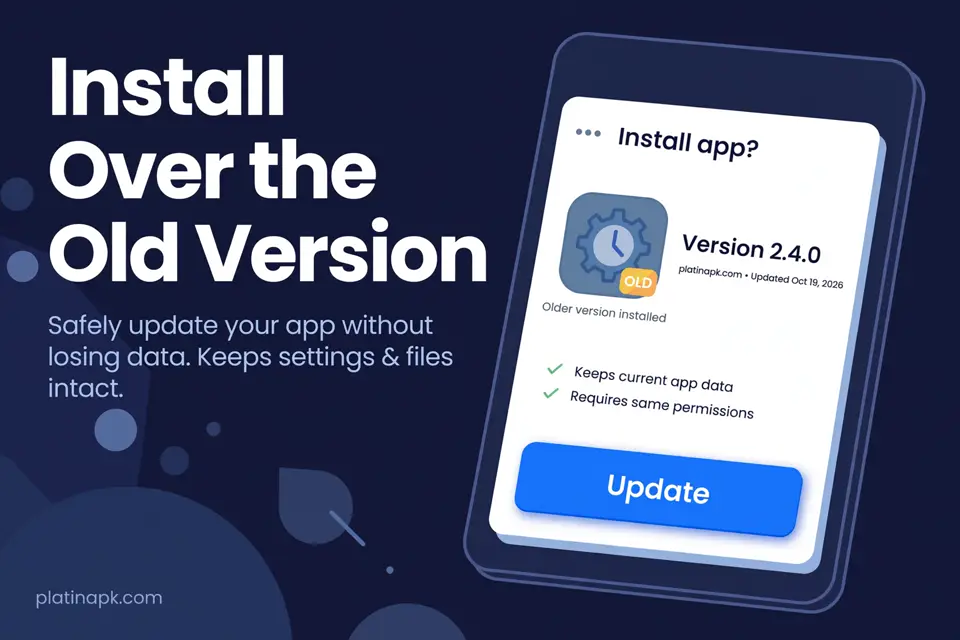
This is how to update MOD APK files the safe way. It is also the best way to update MOD APK without losing progress. Android keeps all app data when you install a newer version on top of the old one.
Steps:
- Download the new MOD version. Do not delete the old app.
- Open the new APK file.
- Android shows Update or Install. Tap it.
- Open the game. Your progress should still be there.
This only works when both files have the same signature. Every APK is signed by whoever built it. If your old MOD and the new one come from the same source, the signature usually matches. Then the update works. Android’s developer guide on app signing explains this rule: the system only allows an update when the certificates match.
If you see “App not installed”, the signature is different. Do not uninstall yet. Go to Method 3 and back up your save first. Our App not installed error guide explains every reason this happens.
Method 2: Use the Game’s Own Cloud Save or Account
Many games let you link progress to a Google, Facebook or game account. If that works in your MOD, your progress is safe even if you uninstall.
Steps:
- Open the game settings and look for Save, Cloud, Link account or Bind account.
- Link and save your progress.
- Update or reinstall the game.
- Log in again to load your save.
Important: In many MOD games, Google sign in does not work. Google checks the app’s signature, and a MOD has a different one. Some games, like Eatventure, lose cloud save in modded builds for this reason. Do not count on it unless you have tested it.
Some games also offer a save code or transfer ID. Write it down or take a screenshot before you update.
Method 3: Back Up Your Save Files Before You Uninstall
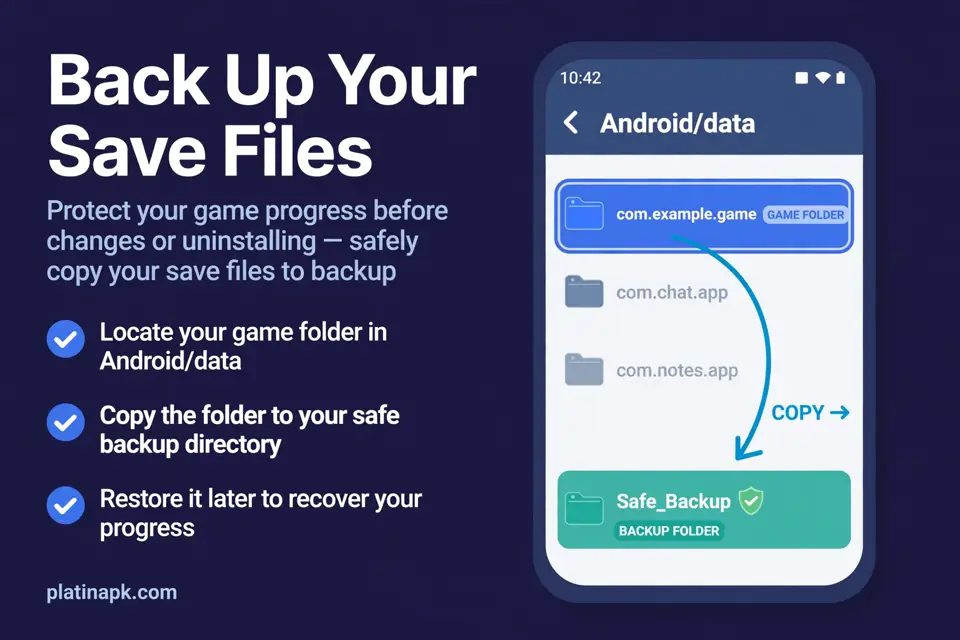
This is the main way to backup game progress on Android without root. Use it when Android will not install the new version over the old one. You copy the save files out, reinstall, then copy them back.
Steps:
- Open your file manager and go to Android, then data.
- Find the folder with the game’s package name, like
com.coffeestainstudios.goatsimulator.free. - Copy the whole folder to a safe place, like your Download folder or a PC.
- Uninstall the old game, then install the new MOD.
- Open the game once, then close it.
- Copy your backup folder back into Android/data, replacing the new files.
- Open the game again.
What to know first:
- Not every game saves here. Many games keep saves in private storage that you cannot reach without root. If the folder is empty or has no save files, this method will not help.
- Android 11 and newer limit access. Many file managers cannot open Android/data on newer phones. Connecting your phone to a PC with a USB cable often still shows the folder.
- Test it first on a game you do not mind losing.
How to Check if Two MOD Files Have the Same Signature
The easiest check is the source. Updates from the same site usually share the same signature. If you want to be sure, compare the signing certificate of both files. Our APK safety guide has an advanced section on checking an APK signature.
If the signatures differ, plan your backup before you touch the old app.
Moving Progress to a New Phone
Want to transfer game progress from a MOD APK to a new phone? It depends on where the save lives.
- Server saves: Log in with the same game account on the new phone. Guest accounts usually cannot move.
- Android/data saves: Copy the game’s folder from the old phone. Install the same MOD on the new phone, then paste the folder back (Method 3).
- Private saves: These cannot be moved without root. Your best option is to keep playing on the old phone, or start fresh.
Phone transfer tools from Samsung or Xiaomi may also copy some app data. Results vary by brand and game.
Online Games: Progress Lives on the Server
For online games like Frozen City and Dragon Mania Legends, your progress is saved on the company’s servers. Updating the MOD does not change your server save.
- Guest accounts are tied to the install. If you uninstall, a guest account can be lost for good. Link it to a game account if the MOD allows it.
- Modded values may reset. The server can replace changed numbers with real ones after an update.
Also remember the ban risk. Never use a MOD on your main paid account.
Updating XAPK and OBB Games
Big games often come as XAPK files with extra OBB data. Updating them works the same way: install over the old version without uninstalling. If the new version has a new OBB file, it replaces the old one.
For full steps, see our XAPK install guide.
If the Game Crashes After an Update
A new MOD version can sometimes crash or freeze on start. Do not uninstall right away.
- Restart your phone and open the game again.
- Clear cache only. Open Settings, then Apps, then the game, then Storage, and tap Clear cache. Never tap Clear data.
- Wait for a fixed version. Check the download page for a newer MOD.
- Roll back only if you must. Android will not install an older version over a newer one. To go back, you need to uninstall first, so back up your save (Method 3) before you do.
The Game Says “Update Required”
Online games often stop older versions from connecting. When you see “Update required” or “New version available”, the old MOD will not work anymore.
- Do not update from the Play Store. It replaces your MOD with the original game.
- Wait for the new MOD, then install it over the old one.
- Offline games usually keep working on old versions, so there is no rush to update.
5 Mistakes That Delete Your Progress
- Uninstalling before updating. This deletes local saves. Always try installing over the old one first.
- Tapping Clear data. This wipes everything. Use Clear cache instead if you need space.
- Mixing MOD sources. A MOD from a different site often has a different signature, so it cannot update your old one.
- Using a phone cleaner app. Some cleaners delete game data folders. Turn off deep clean for your games.
- Updating from the Play Store. If Play Store updates your game, it replaces the MOD with the original. Turn off auto update for that game in Play Store.
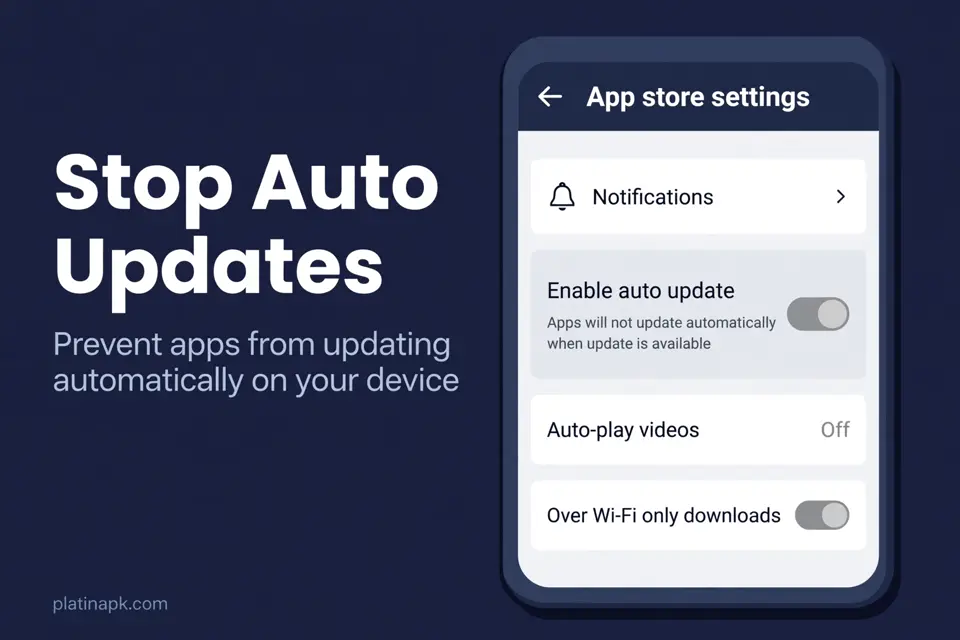
How to Stop the Play Store From Replacing Your MOD
If the same game is on Google Play, the Play Store may try to update it.
- Open the Play Store and tap your profile picture at the top right.
- Tap Manage apps & device, then Manage.
- Tap the game to open its details page.
- Tap More (the three dots), then turn off Enable auto update.
These steps come from Google’s guide on updating Android apps.
Progress Guide for Our MOD Games
| Game | Where progress is saved | Safe way to update |
|---|---|---|
| Goat Simulator | On your phone | Install over the old version |
| Animal Revolt Battle Simulator | On your phone | Install over the old version |
| Idle Egg Factory | On your phone | Install over the old version |
| Eatventure | On your phone (cloud save fails in most MODs) | Install over the old version. Never uninstall first |
| Real Car Parking 2 | On your phone | Install over the old version |
| Frozen City | On the server | Install over the old version, keep the guest account |
| Dragon Mania Legends | On the server | Install over the old version, keep the guest account |
FAQs
Conclusion
The safest way to update MOD APK without losing progress is simple. Install the new version over the old one, and never uninstall first. Get updates from the same source so the signature matches. If Android blocks the update, back up your save files before you uninstall. For online games, keep your guest account safe and remember that the server has the final say. Follow these steps, and you can update MOD APK without losing progress every time.