How to Check if an APK Is Safe Before Installing (2026 Guide)
Here is how to check if an APK is safe in about two minutes. Scan the file on VirusTotal and check that the SHA-256 hash matches the download page. Then review the permissions the app asks for. Keep Google Play Protect on while you install. If two or more trusted antivirus engines flag the file as a trojan or spyware, do not install it.
Installing apps from outside the Play Store is normal on Android. Millions of people do it every day. Some want games that are not in their country. Others want older versions or big game files. The risk is not the APK format itself. The risk is a bad file from a bad source. This guide shows you exactly how to tell the difference.
Quick APK Safety Checklist
This checklist is how to check if an APK is safe every single time. Each step is explained below.
| Step | What to Check | Takes |
|---|---|---|
| 1 | Where the file came from | 10 seconds |
| 2 | VirusTotal scan result | 1 minute |
| 3 | SHA-256 hash match | 30 seconds |
| 4 | Permissions the app asks for | 30 seconds |
| 5 | File size and name | 10 seconds |
| 6 | Play Protect result during install | Automatic |
| Bonus | Package name match | 30 seconds |
Step 1: Check Where the APK Came From
The source matters more than anything else. A clean file from a careful site is safe. The same game from a random link can hide anything.
Signs of a trustworthy download page:
- It shows the app version, file size and update date
- It gives a VirusTotal scan link for the exact file
- It lists the SHA-256 hash
- It explains what the file changes, if anything
- It has a clear About page and contact details
Red flags that mean you should leave:
- The page asks for your game login, email password or phone number
- You must install another app or finish a survey to “unlock” the download
- The file comes from a short link, a Telegram forward or a pop up ad
- The page promises things that cannot work, like unlimited gems in an online game
- The download button leads to a different file name than the game
Our updated pages show the VirusTotal link and SHA-256 hash right under the download button. You can read how we check files on our About Us page.
Step 2: Scan the APK on VirusTotal
VirusTotal is a free service owned by Google. It checks a file with more than 70 antivirus engines at once. It is the fastest apk virus check you can do. It is also the easiest way to scan APK for virus threats before you install.
How to Scan an APK on VirusTotal
- Open virustotal.com in your phone or computer browser.
- Tap the File tab, then Choose file.
- Pick the APK or XAPK file you downloaded. Files up to 650 MB can be uploaded.
- Wait for the scan to finish. It usually takes under a minute.
- Read the result at the top, such as “0 / 70 security vendors flagged this file”.
Shortcut: If the download page gives a VirusTotal link, open it instead of uploading. You still scan APK for virus results, just faster. Then check that the file name and size match the file you got. A link only helps if it is for the same file.
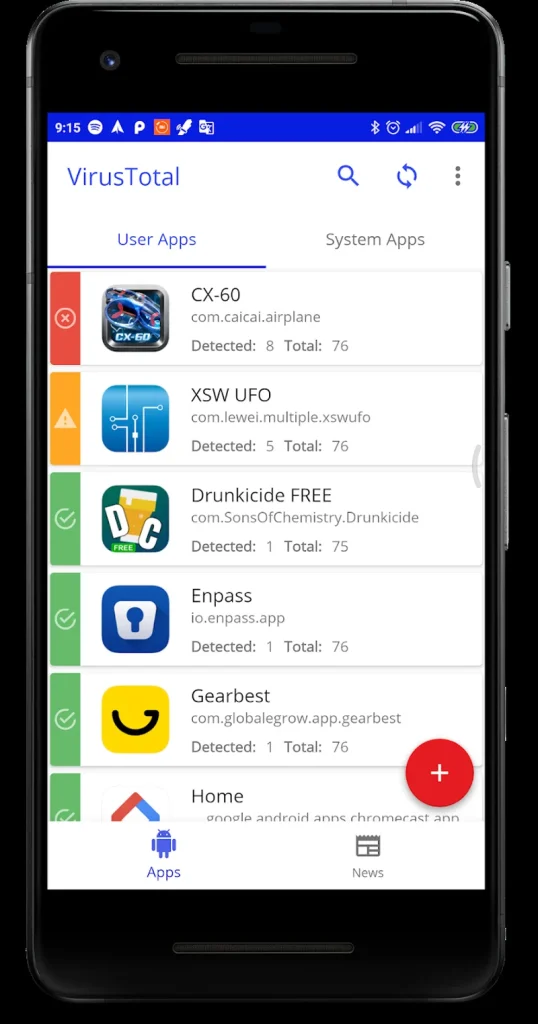
How to Read VirusTotal Results
Not every red line means danger. Here is how to read the numbers.
| Result | What It Usually Means | What to Do |
|---|---|---|
| 0 detections | No engine found anything | Safe to install from a trusted page |
| 1 to 2 detections with generic names | Often a false positive, especially for mods | Read the names. Generic flags are usually fine. |
| 1 to 2 detections named Trojan or Spyware | Could be real | Do not install unless the source is very trusted |
| 3 or more detections | Likely harmful | Do not install |
| Big names agree (Google, Kaspersky, ESET, Bitdefender) | Strong sign of a real threat | Delete the file |
Generic names that are often false positives: Riskware, PUA (potentially unwanted app), HackTool, Generic, Heur. Mod files often get these flags because their code was changed, not because they steal data.
Names that mean real danger: Trojan, Spyware, Banker, Dropper, Stealer, Ransom, SMS Fraud, Adware with many detections.
Antivirus engines also make mistakes on normal apps. Even well known apps get flagged by one engine now and then, often after a bad virus definition update. That is why one single flag is not proof. Look at how many engines agree and what they call it.
Step 3: Match the SHA-256 Hash
A SHA-256 hash is like a fingerprint for a file. If even one byte changes, the hash changes completely. Does your file’s hash match the hash on the download page? Then you got the exact file the site checked.
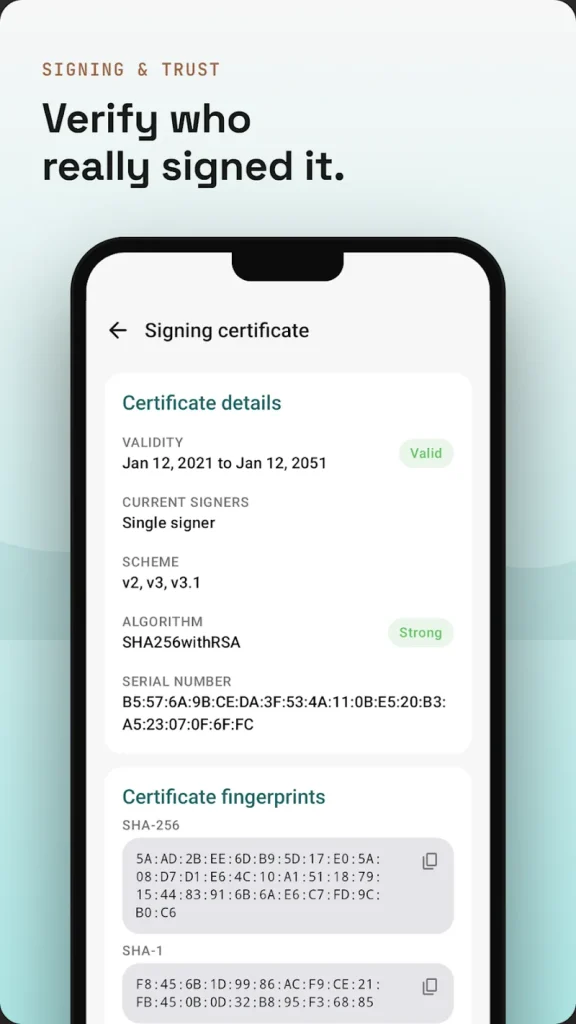
The Easy Way: Use VirusTotal
When you upload a file to VirusTotal, open the Details tab. You will see the SHA-256 value at the top. Compare it with the hash on the download page. The first and last six characters are enough for a quick check.
On a Windows PC
- Open PowerShell.
- Type Get-FileHash C:\path\to\game.apk -Algorithm SHA256 and press Enter.
- Compare the long code with the one on the download page.
On a Mac
- Open Terminal.
- Type shasum -a 256 ~/Downloads/game.apk and press Enter.
- Compare the result with the hash on the download page.
If the two hashes do not match, the file was changed or the download broke. Delete it and download again from the original page.
Step 4: Check the App’s Permissions
Permissions show what an app can do on your phone. A game that wants to read your SMS is a big warning sign.
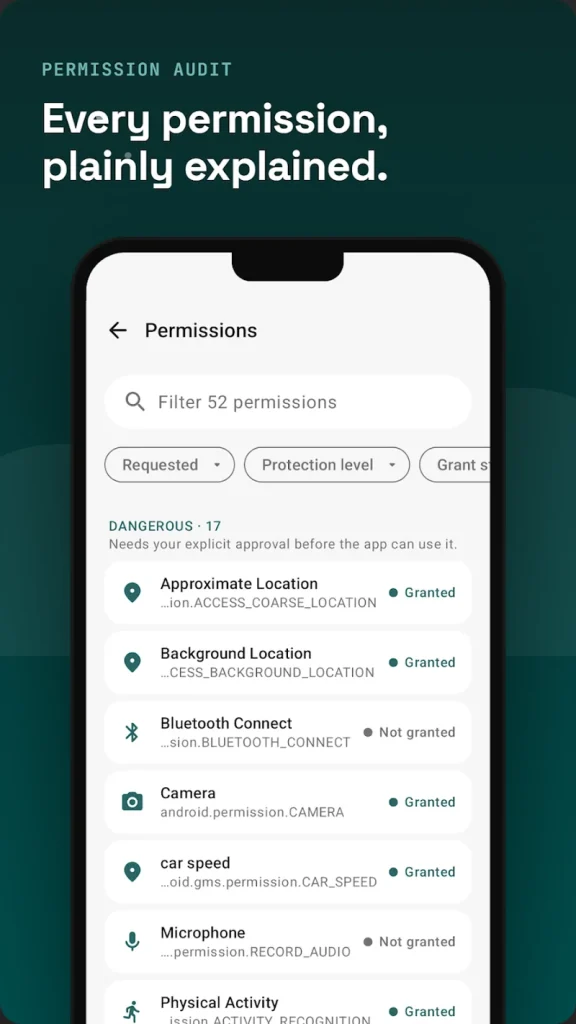
How to See Permissions Before Installing
- On VirusTotal: Open the Details tab of the scan. For APK files, it lists every permission the app asks for.
- After installing: Go to Settings, Apps, pick the app, then tap Permissions. You can turn off anything you do not like.
Permissions That Should Worry You
| Permission | Why It Is Risky in a Game |
|---|---|
| Read or send SMS | Can steal bank codes or send paid messages |
| Read call log or contacts | Can steal your personal data |
| Accessibility service | Can read your screen and tap for you |
| Device admin | Makes the app hard to remove |
| Display over other apps | Used for fake login screens |
| Install other apps | Can download more harmful apps |
Normal game permissions are internet access, storage for game data, vibration and notifications. Some games also ask for the microphone for voice chat, which is fine if the game has voice chat.
Step 5: Check the File Size and Name
Fake files often give themselves away by size.
- Too small: A big 3D game that is only 5 MB is almost always fake. It is often just a downloader.
- Wrong name: The file should be named after the game, not “setup.apk” or “installer.apk”.
- Wrong type: A game should never come as an .exe, .bat or .zip with a password.
Compare the size with the official size on Google Play or the developer’s site. Big games often come as XAPK files. Our guide on how to install XAPK, APKS and APKM files explains those formats.
Step 6: Let Google Play Protect Scan It
Google Play Protect is built into most Android phones. It checks apps from outside the Play Store when you install them. For apps it has not seen before, it can send them to Google for a code level check. Then it tells you if the app looks harmful.
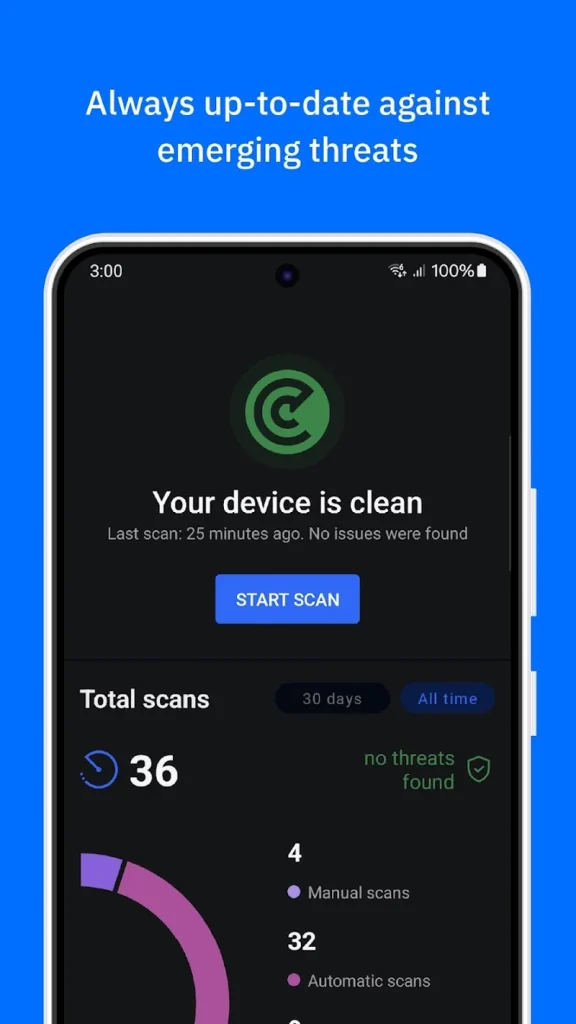
To make sure it is on:
- Open the Play Store.
- Tap your profile icon, then Play Protect.
- Tap the settings gear and make sure Scan apps with Play Protect is on.
Google explains how Play Protect checks apps in its help center.
If Play Protect says an app is harmful, take that seriously. A warning that the app is “unknown” or “not from the Play Store” is normal for any sideloaded file. Then rely on your VirusTotal and hash checks.
Bonus Check: Match the Package Name
Every Android app has a unique package name, like com.supercell.clashofclans. Fake apps often copy the game’s name and icon but use a different package name.
- Open the game’s page on Google Play. The package name is at the end of the link, after id=.
- Open the Details tab of your VirusTotal scan. Find the Package Name line.
- Check that both match exactly.
If they do not match, the file is not the real game. It may be a copy, a fake or a different app with the same name.
How to Check an APK Signature (Advanced)
Every real app is signed by its developer with a private key. A changed file cannot carry the same signature. This is the strongest check, but it needs a computer.
- Install Android SDK Platform Tools on your PC. It is free from Google.
- Open a terminal in that folder.
- Run apksigner verify –print-certs game.apk.
- Compare the SHA-256 certificate digest with one you know is real. The same app from Google Play is a good reference.
The simple phone test: Does the APK install over your Play Store copy without asking you to uninstall? Then the signature matches the developer’s. If Android says “App not installed” because of a conflict, the file was signed by someone else.
Common Fake APK Tricks to Watch For
Scammers use the same tricks again and again. Once you know them, they are easy to spot.
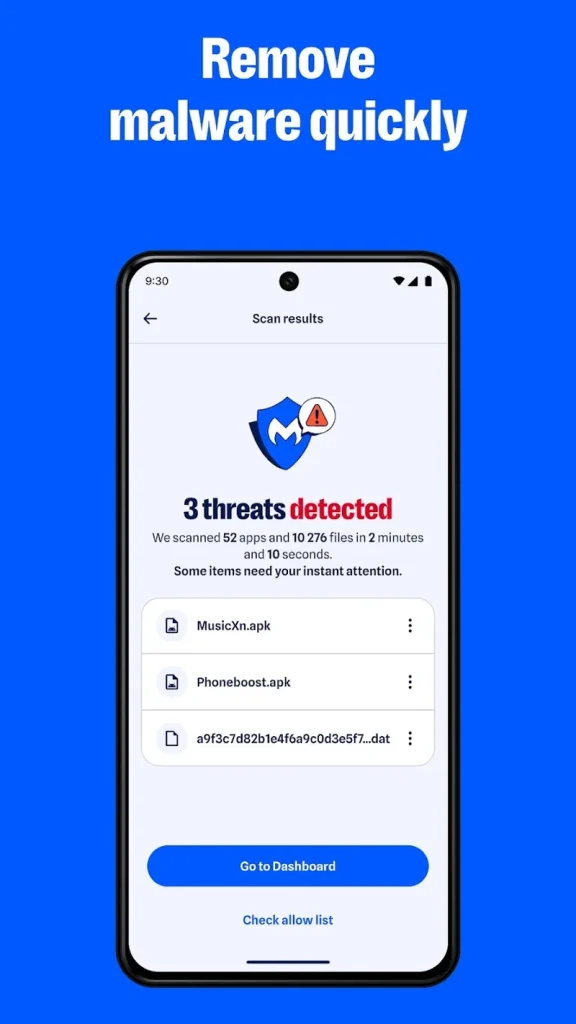
- Fake “update required” pop ups. A website says your game or browser needs an update and offers an APK. Real updates come from the Play Store or inside the app.
- “Your phone is infected” pages. A page claims your phone has a virus and pushes a “cleaner” APK. Close the tab.
- Double names. A file called game.apk.exe or video.mp4.apk is trying to hide what it is.
- Copy cat icons. The icon and name look right, but the package name is different.
- Downloader apps. A tiny APK that downloads “the full game” later can download anything.
- Password protected ZIP files. Antivirus engines cannot scan inside them. Real game files are never locked this way.
New Android Safety Features That Help You
Recent Android versions add extra protection for apps from outside the Play Store. Keep your phone updated to get them.
- Restricted settings (Android 13 and newer). Sideloaded apps cannot turn on risky powers like Accessibility until you allow it by hand in the app’s settings. If a game asks you to unlock this, be careful.
- Old app block (Android 14 and newer). Android blocks apps built for very old Android versions, which malware often uses to dodge new safety rules.
- Real-time code-level checks. If Play Protect has never seen an app from outside the Play Store, it can recommend sending it to Google for a code-level evaluation before you install. Turn on Improve harmful app detection in the Play Protect settings to allow this automatically.
If your phone is stuck on an old Android version, the steps in this guide matter even more.
Are MOD APKs Safe?
MOD APKs are a special case, so here is the honest answer.
A mod is an edited copy of an app. Editing breaks the original signature, so every mod is signed by whoever made it. That is why a mod cannot install over the Play Store version. It is also why antivirus engines often give it a generic flag.
A mod can be safe when:
- It comes from a page that shows the VirusTotal link and hash
- Only generic flags like Riskware or HackTool appear
- It asks for normal game permissions only
- It is for an offline single player game
A mod is risky when:
- It is for an online game. Changed files for online games do not give real gems, and they can get your account banned. Our guides on Clash of Clans and Rise of Kingdoms explain why.
- It asks for your game login
- It has detections named Trojan or Spyware
That is why our Strategy category offers mods only for offline games. Examples are World Conqueror 4, Haunted Dorm and Steel And Flesh 2. For online games like Rush Royale, Castle Crush, Monster Legends and Megapolis, we share the clean original file instead.
Signs You Already Installed a Bad APK
Watch for these signs in the days after you install something new.
- Ads pop up outside apps, even on the home screen
- Your battery drains much faster than before
- Your data use jumps for no reason
- New apps appear that you did not install
- You get SMS codes or bank alerts you did not ask for
- An app has no icon or will not uninstall
What to Do If You Installed a Harmful APK
Act fast and in this order.
- Turn on airplane mode. This stops the app from sending your data.
- Uninstall the app. Go to Settings, Apps, pick it and tap Uninstall.
- If it will not uninstall, go to Settings, Security, Device admin apps and turn it off there first. Then uninstall it.
- Still stuck? Restart in safe mode. On most phones, press and hold the power off option until “Safe mode” appears. Then uninstall the app.
- Run Play Protect. Open the Play Store, go to Play Protect and tap Scan.
- Change your passwords from a different device. Start with your email, bank and social accounts.
- Check your bank and mobile balance for strange charges.
- Last resort: Back up your photos, then do a factory reset.
How to Check if APK Is Safe on Budget Phones
Budget phones from Redmi, Infinix, Tecno and Samsung Galaxy A often have their own security apps. These run on top of Play Protect. These are fine to keep on. If the phone’s own scanner warns you, check the file on VirusTotal before you decide. Phone scanners sometimes flag any file from outside the Play Store.
Also keep enough free storage. A full phone can break a download halfway, which makes the hash fail and the file look broken.
FAQs
Conclusion
Now you know how to check if an APK is safe in a few simple steps. Download from a trusted page, scan the file on VirusTotal and match its SHA-256 hash. Then check the permissions and keep Play Protect on. One generic flag is usually fine, but Trojan or Spyware detections mean delete it. Follow this routine every time, and sideloading stays safe on any Android phone.
Ready to install a big game? Read our guide on how to install XAPK, APKS and APKM files next.