App Not Installed Error on Android: 12 Fixes That Work
You tap Install, wait a second, and Android shows “App not installed”. It gives no reason. The app not installed error is one of the most common APK problems on Android. The good news is that it almost always has a simple cause.
This guide shows you how to fix app not installed step by step. Find your exact error message, see the cause and fix it. Most fixes take less than two minutes, and none of them need root.
Quick Fix: Find Your Error Message
Look at the exact words on your screen, then jump to the fix.
| Error message | Most likely cause | Fix |
|---|---|---|
| App not installed | Signature conflict, low storage or blocked install | Fix 1, Fix 2, Fix 3 |
| App not installed as package conflicts with an existing package | Same app with a different signature is installed | Fix 1 |
| App not installed as package appears to be invalid | Broken or incomplete download, or a split APK | Fix 4, Fix 5 |
| There was a problem parsing the package | Damaged file or Android version too old | Fix 4, Fix 6 |
| App not installed as app isn’t compatible with your phone | Wrong CPU type or old Android | Fix 6, Fix 7 |
| Install blocked or “Blocked by Play Protect” | Google Play Protect stopped it | Fix 8 |
| Pop up says the app is blocked by Auto Blocker | Samsung security setting | Fix 9 |
| Install fails after you downloaded an older version | Version downgrade | Fix 10 |
| Install is blocked by an admin or parental control | Family Link, school or work rules | Fix 12 |
Why Does Android Say “App Not Installed”?
Android checks every APK before it installs it. When one check fails, you get the app not installed error. An APK not installing does not mean your phone is broken. It checks four things:
- Who signed the app. Every APK has a digital signature from its maker. An update must have the same signature as the app already on your phone.
- Whether the file is complete. A broken or half downloaded file fails.
- Whether your phone can run it. The APK must match your Android version and your phone’s CPU type.
- Whether you allowed it. Android, Play Protect and some phone brands can block installs from outside the store.
If any check fails, you see “App not installed”. The fixes below cover each one.
Fix 1: Uninstall the Old Version (Signature Conflict)
This is the most common cause, especially with MOD APKs.
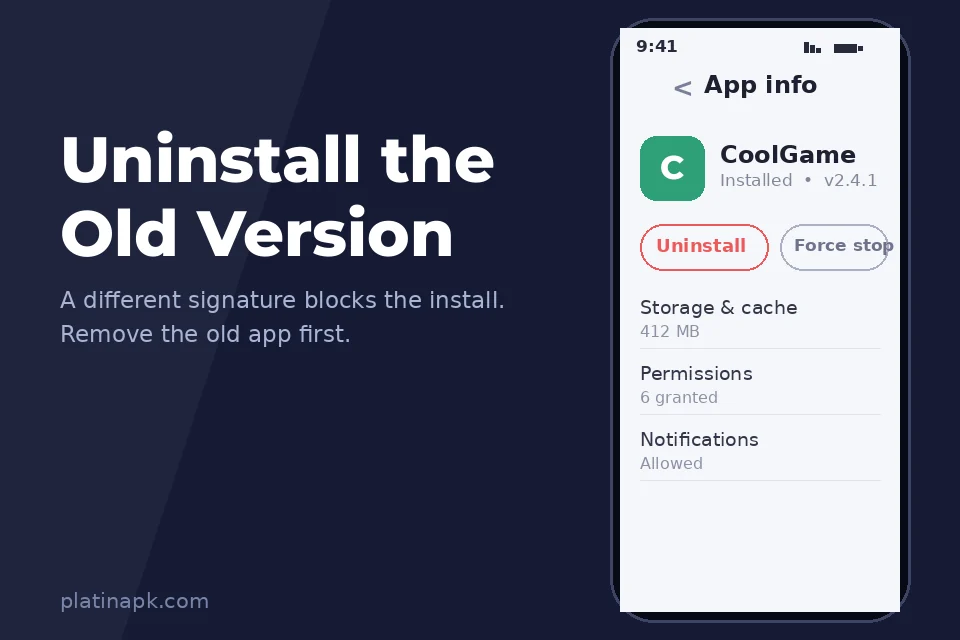
When an app is already on your phone, Android only lets you install an update with the same signature. A MOD APK is signed with a different key than the Play Store version. So if the Play Store version is installed, the MOD cannot install over it. Android shows “App not installed” or “package conflicts with an existing package”.
How to fix it:
- Open Settings, then Apps.
- Find the game or app and tap Uninstall.
- Install the new APK again.
Important: Uninstalling deletes local progress. If the game has a cloud save or account login, link it before you uninstall. For a full guide on keeping progress, see how to update a MOD APK without losing progress.
Sometimes the old app is hidden. Check for a second copy in Secure Folder on Samsung, Dual Apps on Xiaomi or a work profile. Uninstall it there too.
Fix 2: Free Up Storage Space
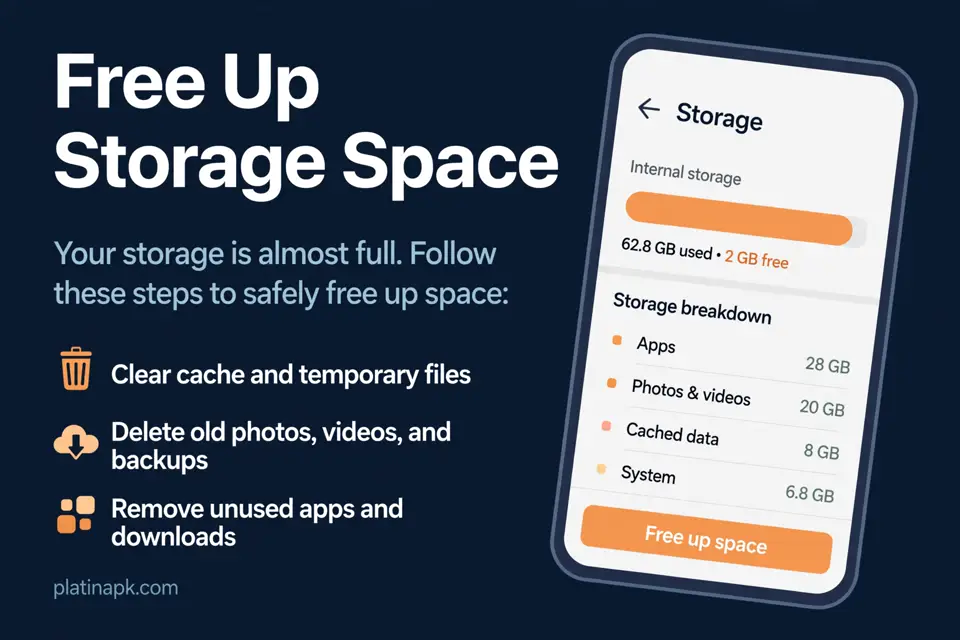
Android needs much more free space than the APK size. It copies the file, unpacks it and then builds the app. A 500 MB game can need 1.5 GB or more during install.
How to fix it:
- Open Settings, then Storage, and check free space.
- Delete old videos, WhatsApp media and apps you do not use.
- Clear cache for big apps like Chrome and TikTok.
- Keep at least 2 GB free for large games, then try again.
On budget phones like Redmi, Infinix, Tecno and Samsung Galaxy A models, storage fills up fast. This simple fix solves a lot of failed installs.
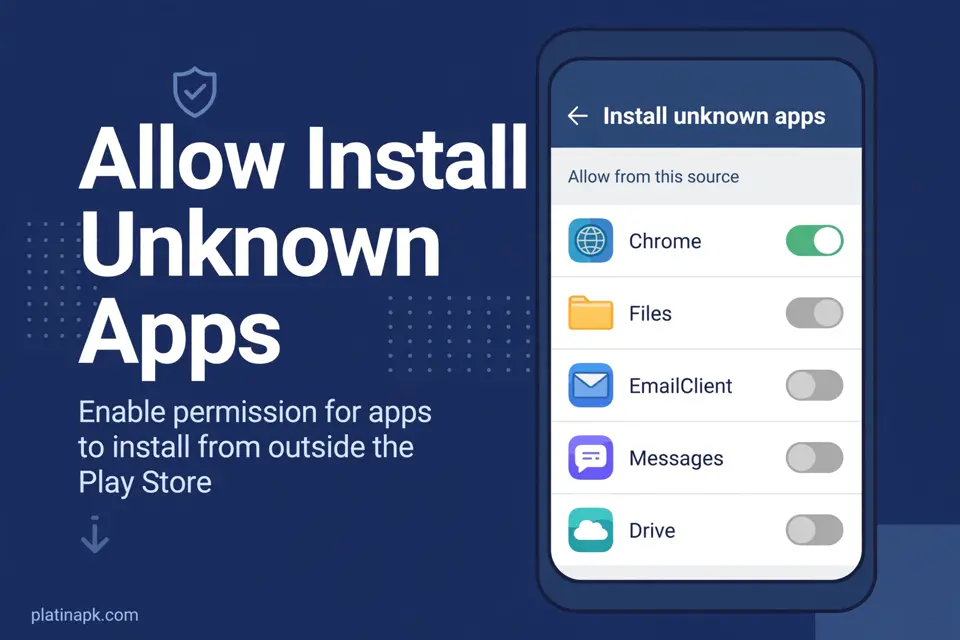
Fix 3: Allow “Install Unknown Apps”
On Android 8 and newer, every app that opens an APK needs permission to install apps. If your browser or file manager does not have it, the install stops.
How to fix it:
- Open Settings and search install unknown apps.
- Pick the app you used to open the file, like Chrome or Files.
- Turn on Allow from this source.
- Open the APK again.
You only need to do this once for each app. Turn it off later if you want extra safety.
Fix 4: Download the File Again
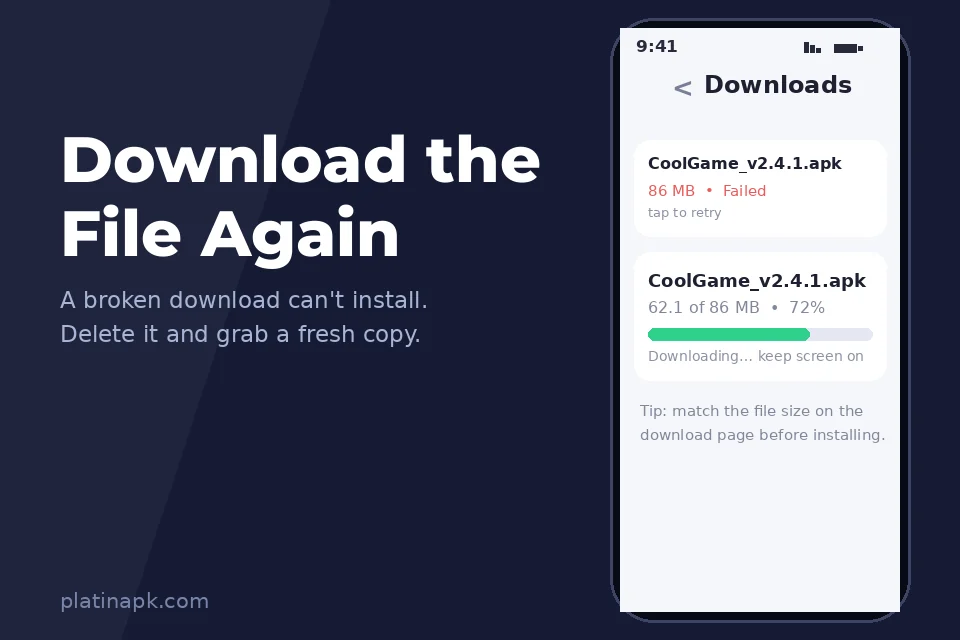
A file that stopped halfway, or broke during download, cannot install. You often see “package appears to be invalid” or “there was a problem parsing the package”.
How to fix it:
- Delete the old file.
- Download it again on a stable WiFi connection. Keep the screen on until it finishes.
- Compare the file size with the size on the download page. They should match.
- If the page lists a SHA-256 hash, check it. Our guide on how to check if an APK is safe shows how.
Also check the file name. If it ends in .zip, .xapk or .apks instead of .apk, see Fix 5.
Fix 5: Install XAPK and Split APKs the Right Way
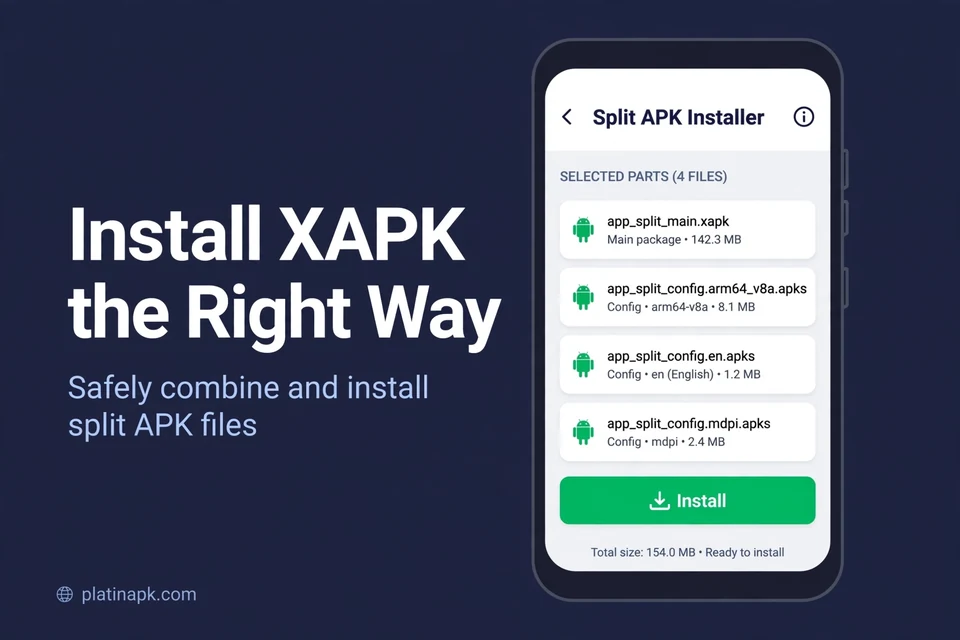
Many big games come as XAPK, APKS or APKM files. These hold several APK parts, and sometimes extra game data. Rename them to .apk or tap them in a normal installer, and you get “package appears to be invalid”.
How to fix it: Use a split APK installer like SAI. You can also install the APK and OBB parts by hand. Our step by step XAPK install guide covers both methods.
Fix 6: Check Your Android Version
Every app has a minimum Android version. If your phone is older, the install fails with “problem parsing the package” or “not compatible”.
How to check your version: Open Settings, then About phone, then Software information or Android version.
There is also the opposite problem. Newer Android blocks very old apps:
- Android 14 blocks apps made for Android 5.1 or older.
- Android 15 and 16 block apps made for Android 6.0 or older.
So a very old APK may refuse to install on a new phone. The fix is to download a newer version of that app.
Fix 7: Get the Right Version for Your CPU (32 or 64 Bit)
Some APKs are built only for 64 bit phones (arm64) or only for 32 bit phones (armeabi). If the APK does not match your phone’s CPU, Android shows “App not installed” or “not compatible”.
How to fix it:
- Check your phone’s CPU type. A free app like CPU-Z shows it under the System tab as the “Instruction sets”.
- Most phones from the last few years are 64 bit. Very old or cheap phones may be 32 bit only.
- Download the APK version that matches. Many download pages list “arm64-v8a” or “armeabi-v7a”.
Some phones run 64 bit chips with 32 bit Android. These phones can only install 32 bit apps.
Fix 8: Handle Google Play Protect the Safe Way
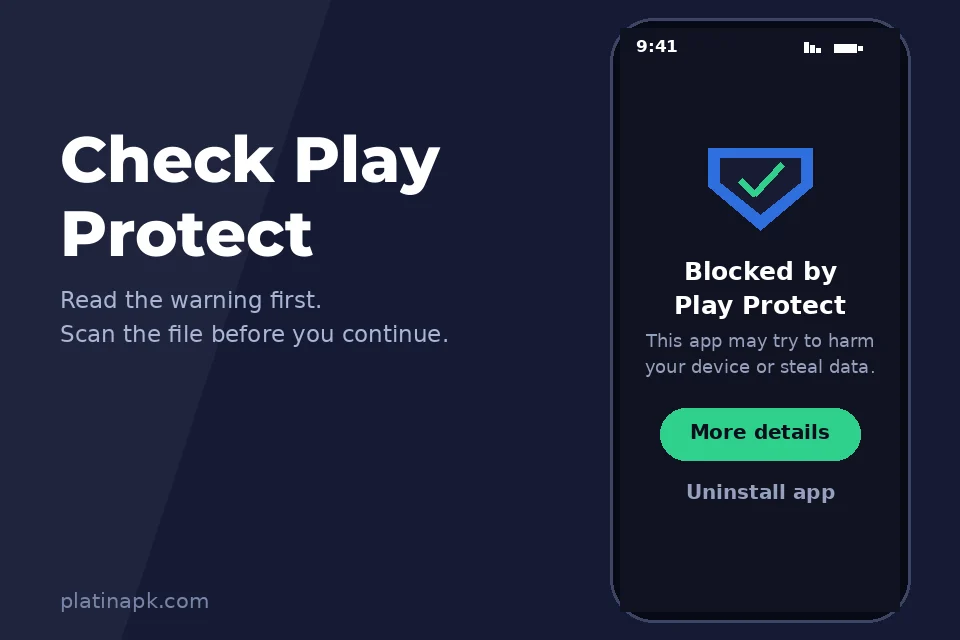
Google Play Protect scans apps you install from outside the store. If it thinks an app is harmful, it can warn you or block the install.
Do this first: Read the warning. If Play Protect says the app is harmful, do not force it. Check the file with VirusTotal using our APK safety guide.
If you trust the file: Many warnings show a More details or Install anyway option. Tap it to continue. Google explains how Play Protect works.
We do not recommend turning Play Protect off. It is one of the best free protections on your phone.
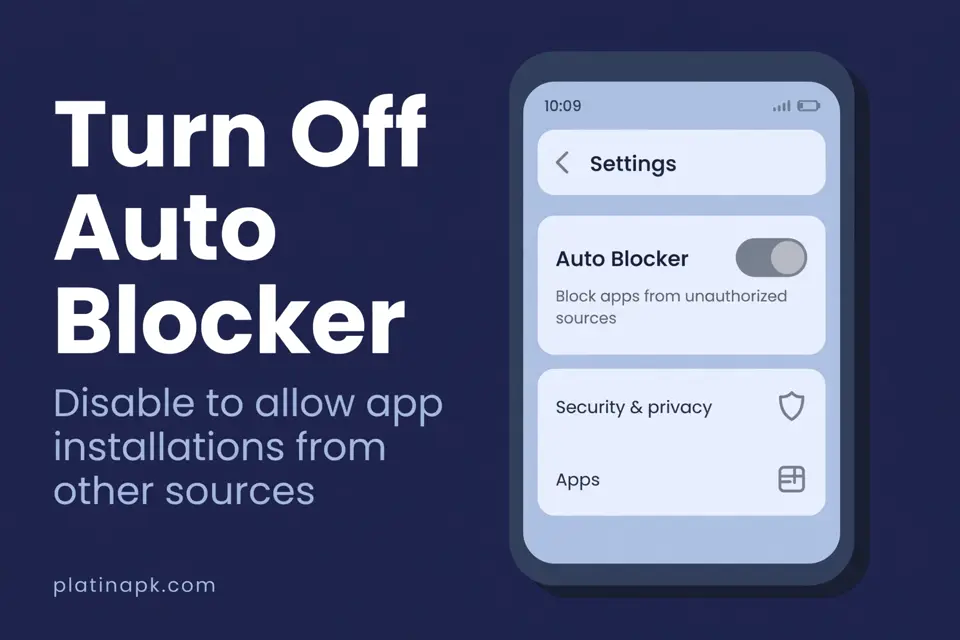
Fix 9: Turn Off Samsung Auto Blocker for One Install
Samsung added Auto Blocker in One UI 6.1.1. It blocks apps from outside Google Play and the Galaxy Store. On Galaxy phones that shipped with One UI 6.1.1 or newer, it is on by default.
How to fix it:
- Open Settings, then Security and privacy.
- Tap Auto Blocker and turn it off.
- Install your app.
- Turn Auto Blocker back on.
Menu names can be a little different on some models.
Fix 10: Do Not Install an Older Version Over a Newer One
Android does not let you replace a newer version of an app with an older one. This is called a downgrade, and it fails with “App not installed”.
How to fix it: Uninstall the newer version first, then install the older one. Remember that this removes local progress. In most cases, it is better to simply use the latest version.
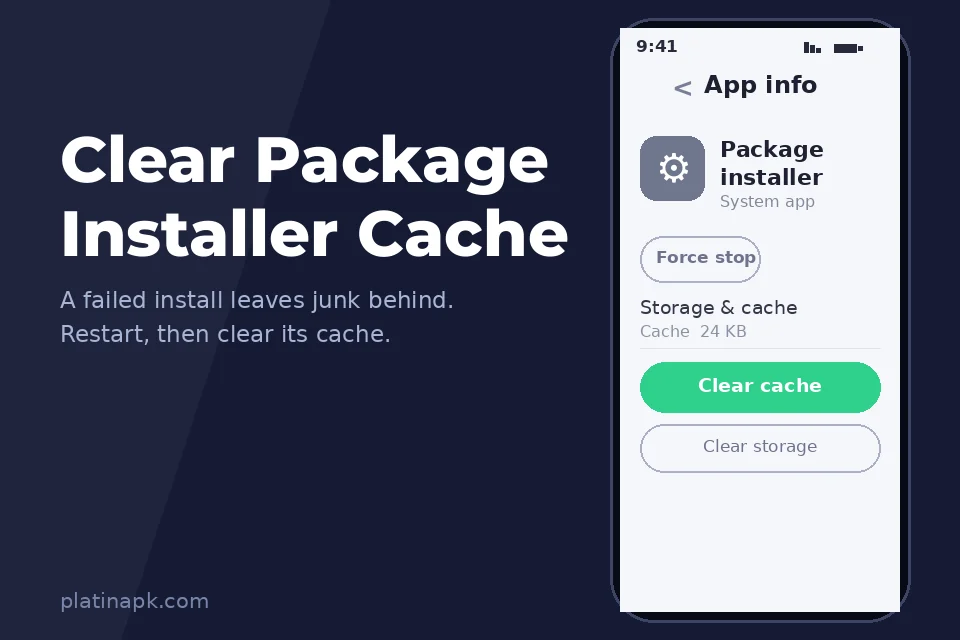
Fix 11: Restart and Clear the Package Installer
Sometimes a failed install leaves the system confused. A quick reset helps.
- Restart your phone.
- Open Settings, then Apps, and show system apps.
- Find Package Installer and tap Clear cache.
- Try the install again.
Fix 12: Check Parental Controls and Device Admin Rules
If your phone is managed by Google Family Link, a school or a company, outside installs may be blocked. You may see “Blocked by your admin” or simply “App not installed”.
How to fix it:
- Family Link: Ask the parent account to allow the app. You can also install it from Google Play.
- School or work phones: These rules come from the organization. Ask the admin, or use a personal phone.
- Old security apps: Some antivirus or “phone cleaner” apps add their own install block. Check their settings, or pause them for one install.
Error Codes for Advanced Users
Some installers and PC tools like ADB show a code instead of “App not installed”. Here is what each common code means.
| Error code | What it means | Fix |
|---|---|---|
| INSTALL_FAILED_UPDATE_INCOMPATIBLE | Signature does not match the installed app | Fix 1 |
| INSTALL_FAILED_INSUFFICIENT_STORAGE | Not enough free space | Fix 2 |
| INSTALL_PARSE_FAILED_NO_CERTIFICATES | The APK is not signed or is damaged | Fix 4 |
| INSTALL_FAILED_OLDER_SDK | Your Android version is too old | Fix 6 |
| INSTALL_FAILED_DEPRECATED_SDK_VERSION | The app is too old for your Android | Fix 6 |
| INSTALL_FAILED_NO_MATCHING_ABIS | Wrong CPU type (32 or 64 bit) | Fix 7 |
| INSTALL_FAILED_VERSION_DOWNGRADE | Older version over a newer one | Fix 10 |
Brand Specific Tips
| Brand | What to check |
|---|---|
| Samsung | Auto Blocker (Fix 9) and Secure Folder copies (Fix 1) |
| Xiaomi, Redmi and Poco | Dual Apps copies (Fix 1). The security app may scan the file first. Wait for the scan to finish |
| Infinix and Tecno | Phone Master or storage cleaner may delete half downloaded files. Download again (Fix 4) |
| Any brand with a work profile | The work profile may block outside installs. Install in your personal profile |
App Not Installed on MOD APKs: What Is Different
MOD APKs fail more often for three simple reasons:
- Different signature. The MOD is signed by the modder, not the game company. You must remove the Play Store version first (Fix 1).
- Big XAPK files. Many MOD games come as XAPK with extra data. Use the right installer (Fix 5).
- Updates from a different source. If your old MOD came from another site, its signature may differ. Uninstall it first, then install the new one.
Before you install any MOD, scan it. A real “App not installed” error is harmless, but a fake file can be dangerous. Our APK safety guide shows how to check it in a few minutes.
How to Avoid This Error Next Time
A few habits stop most install problems before they start:
- Keep 2 GB of storage free before you download big games.
- Get updates from the same source as your first install, so the signature matches.
- Check the file type. Use a split APK installer for XAPK, APKS and APKM files.
- Check the requirements on the download page against your Android version.
- Download on WiFi and let the file finish before you open it.
- Scan new files before you install them.
Still Not Working?
Still wondering how to fix app not installed after all 12 fixes? Try these last steps:
- Try a different file manager to open the APK.
- Move the APK to internal storage instead of the SD card.
- Download the app from its official Google Play page instead, if it is available there.
- Check the download page for a note about your phone model or Android version.
FAQs
Conclusion
The app not installed error looks scary, but it usually has a simple cause. In most cases, an old version with a different signature is still on your phone, or storage is full. Match your exact error message to the table at the top, try the fix and install again. For big games, use the XAPK install guide, and always check new files with our APK safety guide.